Making Payment
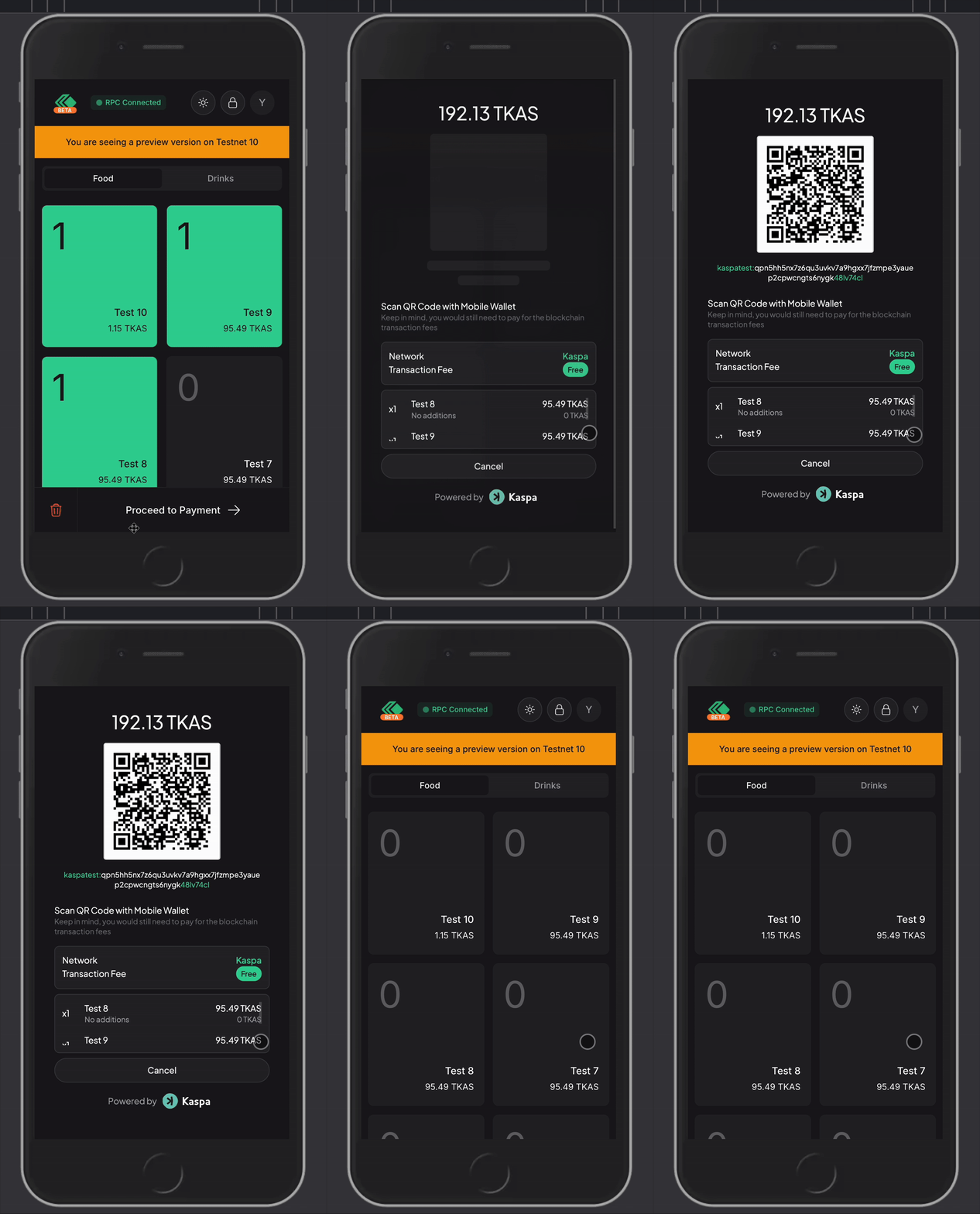
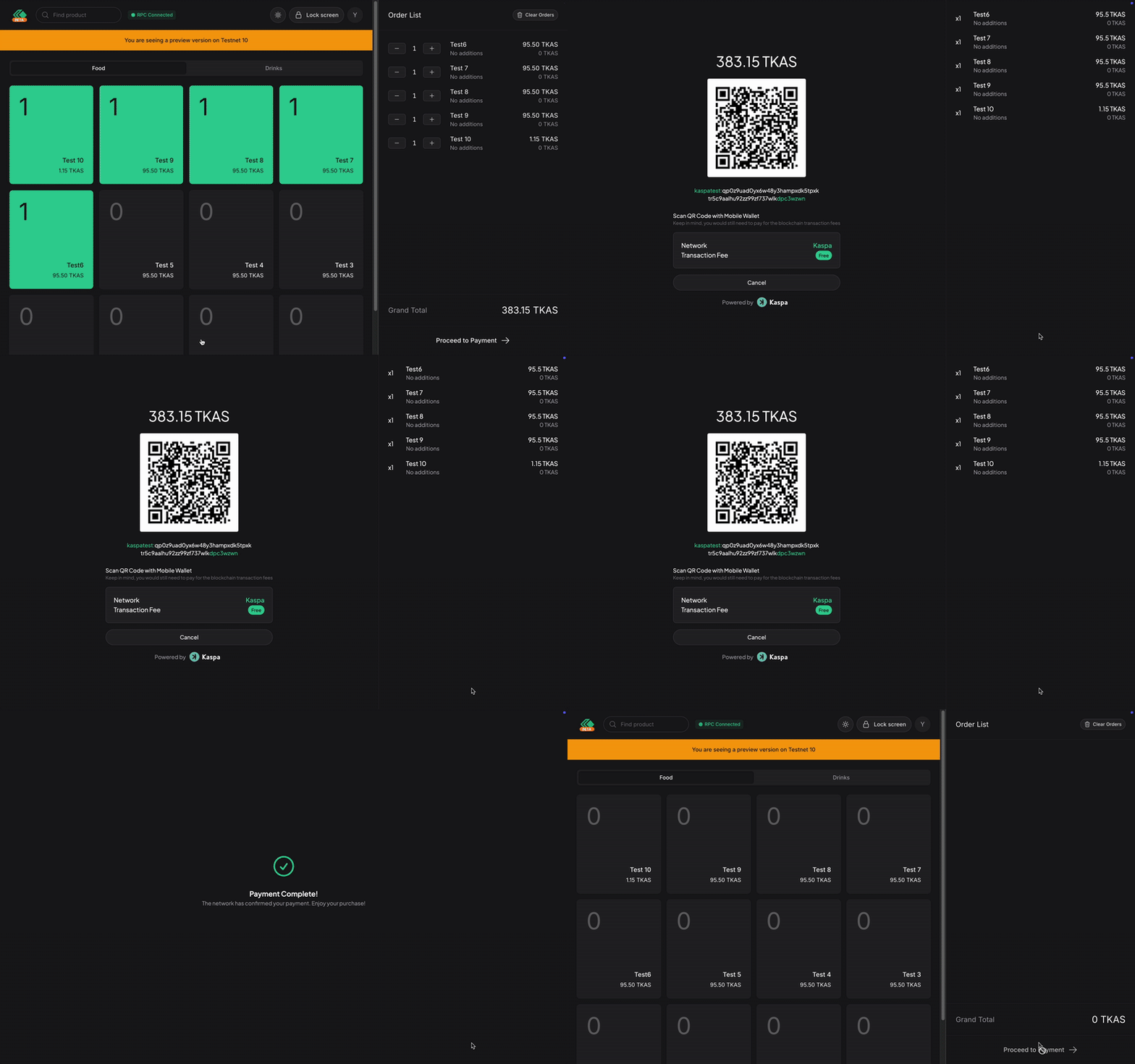
To make payment, simply tap the Proceed to Payment button on the bottom-right of the screen.
INFO
The payment address will be different from your connected wallet or proxy address. Do not worry, this address is your Payment address generated by our PDA engine.
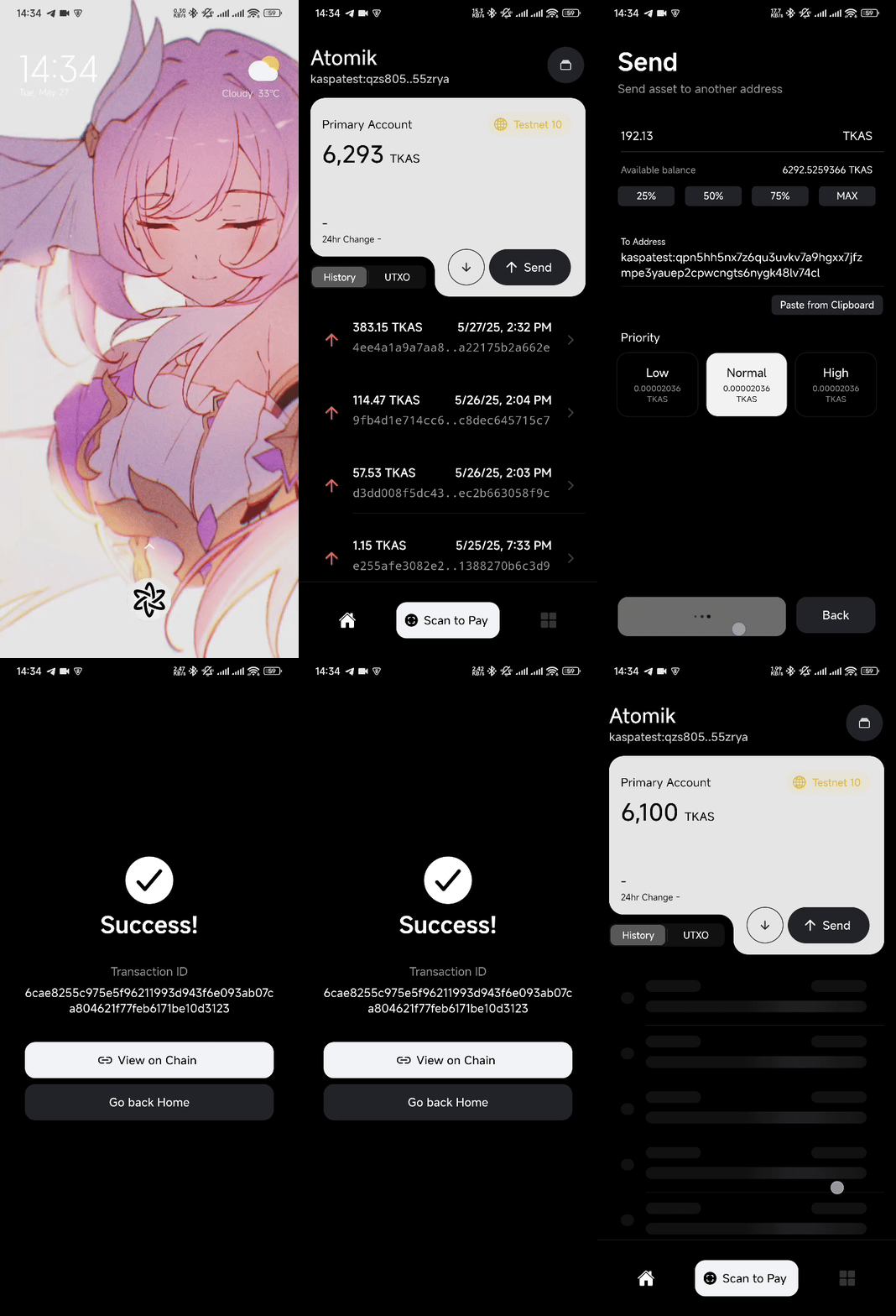
Then ask your customer to open their wallet and scan the QR code.
INFO
We are using Atomik Wallet just to present you how your customer make a payment on Testnet. You can use any mobile wallets that supports QR code scanning ability.
🚨🚨🚨 DANGER 🚨🚨🚨
The payment amount MUST MATCH with the requested amount. The QR code should set it up automatically for them when scanned, so they don't need to make edits. Any attempt to send below or above the requested amount will result to an error.
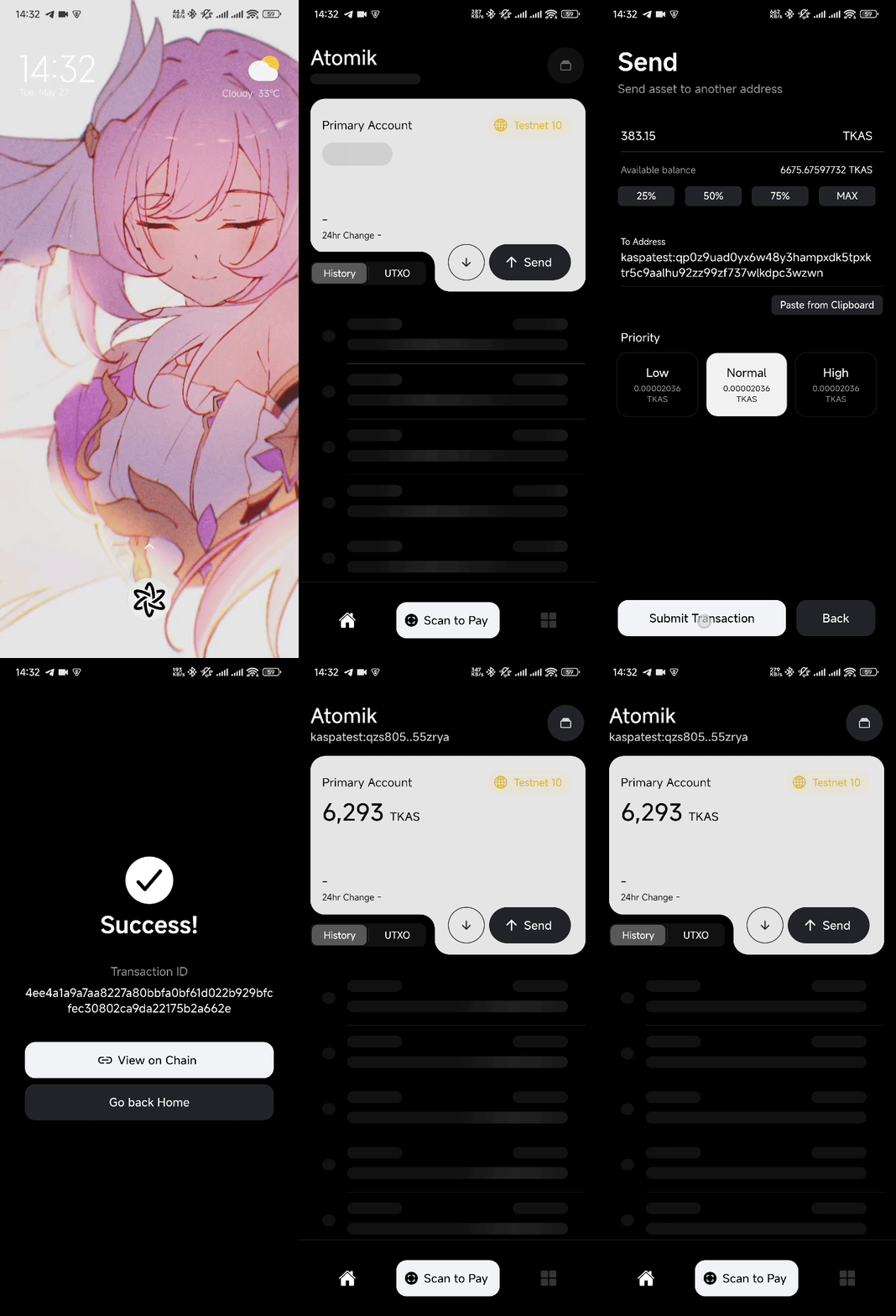
On mobile devices, it should look like this.