Refund
Learn how to refund your payment to your customer
WARNING
This guide only applies for transactions where the status is either Received, or Error.
🚨🚨🚨 IMPORTANT NOTICE 🚨🚨🚨
We do not charge any service fees for refunds. However, a network fee will be deducted to cover transaction processing.
When making payments, sometimes unexpected thing happens. Your customers might be curious enough to think that they can trick the system by sending smaller amounts of coins than the requested.
In case of this, our PDA is smart enough to detect the fraud, and stops processing the payment altogether. There is no such thing as repopping and retransfering in the case of trying to fix the problem. The only way to handle this issue is through a refund.
There are two way to use this feature:
- By logging in as Wallet via the Connect Wallet button
- By asking your Team Leader to perform this operation
Either way shares the same procedure to perform the operation. The only difference is that when asking your Team Leader, they do not need to connect any wallet as they can simply login using their credentials you set in the beginning.
The steps can be done as follow:
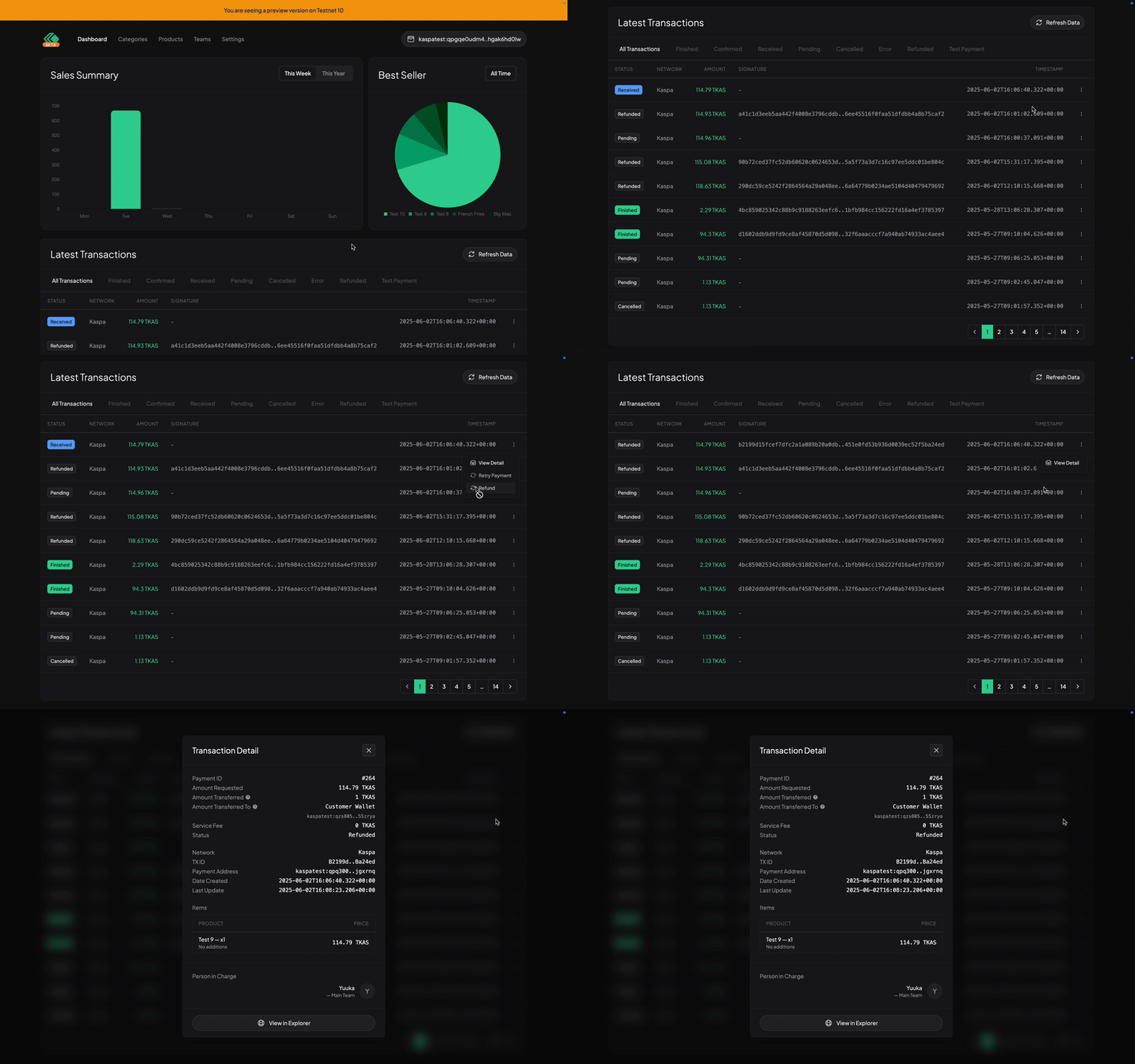
Go to Dashboard Main Panel
In the dashboard main panel, scroll down until you see the Latest Transactions table.Use the status filter
Click on theReceivedorErrorstatus on the filter bar, above the table.Click the vertical dots icon
This button appears on the right of the table, you may need to scroll or swipe the table if you are using smaller devices.Click on the Refund option
Once clicked, the button will be disabled to ensure the operation finished before attempting to perform another refund.